WhatsApp has quickly become the popular choice of communication for many people. What makes WhatsApp stand out from other instant messaging apps is its simplicity, and the fact that it is a free application for Android users. People have started to say ‘WhatsApp me’, which truly shows us its popularity, compared to standard text messages which are charged by carriers.
If you’re using WhatsApp, then you might want to protect your precious conversations from prying eyes. You might think that you have a pattern lock on your Android device and that’s why you don’t need anything else. But what if you unlocked your phone and then your friend took the phone from you and started looking at your WhatsApp messages? That’s why, it is important to password protect WhatsApp on your phone.
WhatsApp by default doesn’t come with any option to set a password, but fortunately there’s an app that can help you with that. Let’s take a closer at the app.
How to Set a Password on WhatsApp for Android
For this purpose, we’ll be taking the help of WhatsApp Lock, an app that can help you protect your WhatsApp privacy using a 4 digit pin. After you install the app, launch it and you’ll then be sent straight to a screen where you need to set your 4 digit pin.
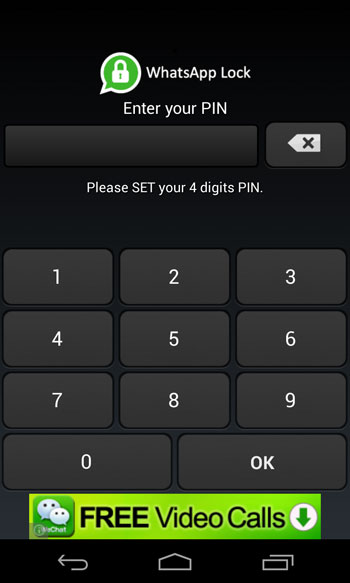
On the next screen, you’ll need to confirm the pin again. Enter the same pin for the second time.
Next, you’ll be able to see the main interface of this app. The first thing you’ll need to do is to turn the WhatsApp Lock slider to “On”.

Next, you can set the Autolock Time to anything that you’re comfortable with. It basically means the time after which you’ll again be prompted for the password (pin). The maximum allowed time is 15 minutes, but 5-10 minutes should be an ideal time.

You can also change the pin from the same screen. However, you can set only a 4 numerical digit password and it can’t be a pattern lock, and should be no longer than 4 digits. But in most cases, this won’t be a problem as you can set any strong pin such as 5916 as your pin which is hard to guess.
If you can ignore the small advertisement banners that are displayed in the app, then it’s surely worth trying. WhatsApp Lock being a free app, you can get it right now from the Play Store. It adds another layer of security for your WhatsApp messages and protects you from being read by other persons. Give it a shot from below link.
Leave a Reply