• Skip to primary navigation
  • Skip to main content
  • Skip to primary sidebar
  • Skip to footer

Technostarry

  • Home
  • Windows 8
  • Android
  • iOS
  • Web Apps
  • Web Browser
  • Hardware
  • About

How to Take Screenshots in Windows 8

March 8, 2012 by Saqib Leave a Comment

We already know that in previous versions of Windows, to take a screenshot one has to press the Print Screen key. This would copy the image to the Clipboard and then the user would need to paste the image (using Ctrl+V) into an image editing program to save it. But not so anymore, with Windows 8 you don’t need to follow this procedure. Windows 8 includes a new feature to capture screenshots natively. This feature is integrated in the OS.

Capture Screenshots in Windows 8

To capture screenshots, press the Windows key + PrintScreen. On pressing this key combination you would observe that the screen has become semi transparent for a second. That’s all you need to do. You can find the saved images (screenshots) from Pictures library. The images are saved in PNG format.
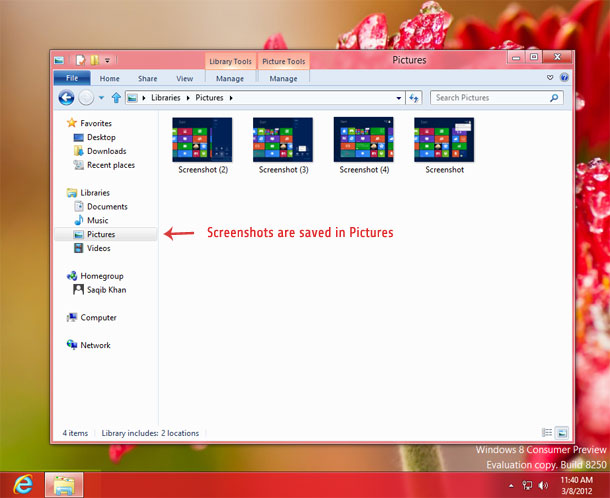
screenshots windows8

Using this method you can capture screenshots of the entire screen area. You can take screenshots of Metro start screen, desktop and other areas also.

Windows 8 gives each screenshot a unique name, with the order of the screenshots taken. For e.g. Screenshot (2), Screenshot (3), etc. Microsoft has made it real easy to capture screenshots in Windows 8.

Filed Under: Windows 8

Reader Interactions

Leave a Reply Cancel reply

Your email address will not be published. Required fields are marked *

Primary Sidebar

STAY CONNECTED

  • Facebook
  • RSS
  • Twitter
  • YouTube

SUBSCRIBE

Subscribe now to get the latest updates from this blog right to your Inbox

Recent Posts

  • 6 Things to Remember Before Buying a Micro SD Card
  • 5 Best Android Stock Market Apps for India
  • Facebook App Alternatives for Android , and Why You Should Use Them
  • Kindle Oasis vs Voyage vs Paperwhite: Which one to Buy

Footer

Links

  • About
  • Subscribe
  • Contact
  • Advertise
  • Privacy Policy

Books on cloud storage services:

  • Mastering OneDrive And Office Online
  • Mastering Google Drive and Docs (With Tips)
  • Mastering Dropbox with Useful Tips and Apps

Must Read Articles

  • How to Change Default Apps on Android
  • 6 Tips to Increase Battery Life on Android 4.4 KitKat Devices
  • How to Transfer Documents and Files to your Kindle
  • 5 Best Free Offline Dictionary Apps for Android

© Copyright 2016 Technostarry · All Rights Reserved ·